Everything you need to know, from your first workout to tracking long-term progress.
1. Getting Started
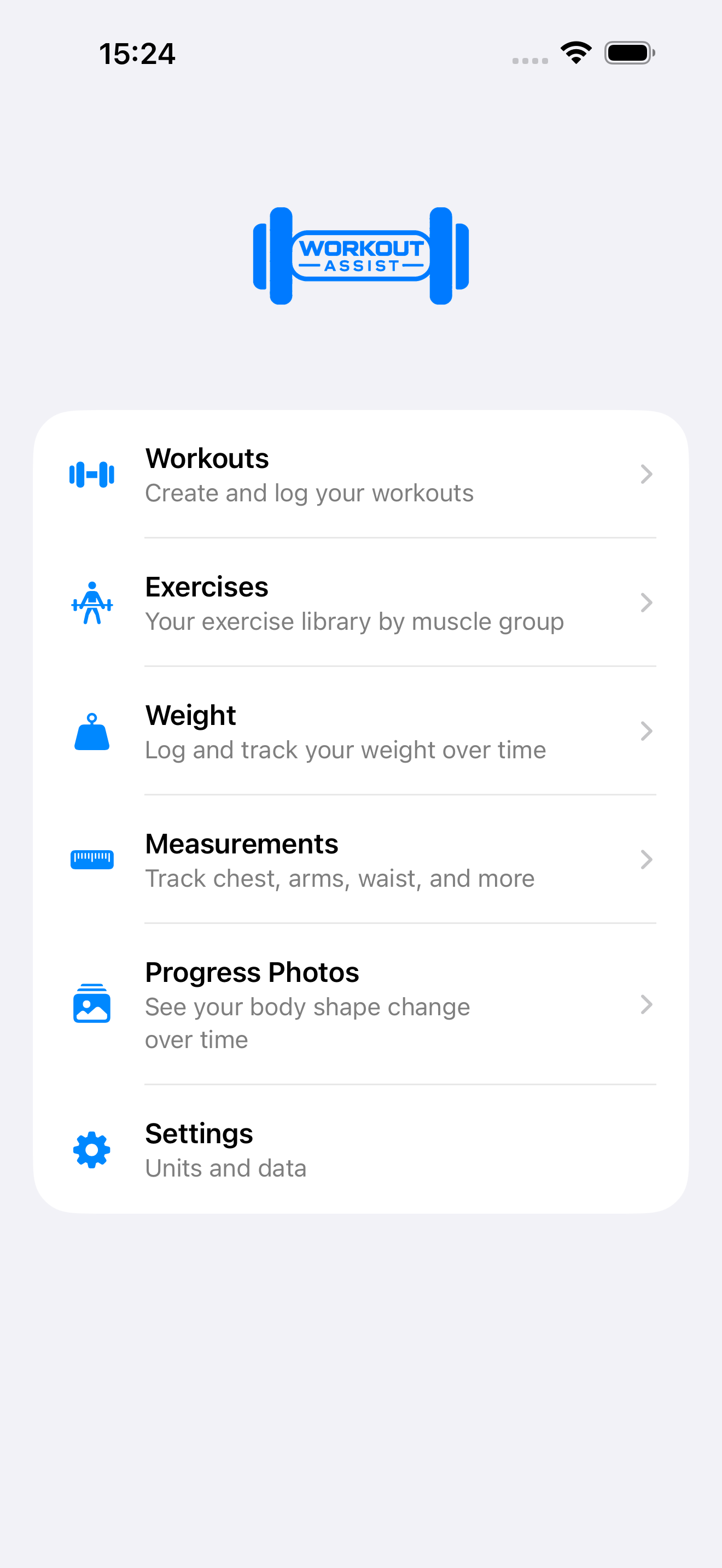
When you open WorkoutAssist you land on the dashboard — your home base. From here you can jump
straight into Workouts, Exercises, Weight,
Measurements, Progress Photos, or Settings.
Everything in the app is reachable from this one screen.
The dashboard is your starting point for every session.
2. Creating & Managing Workouts
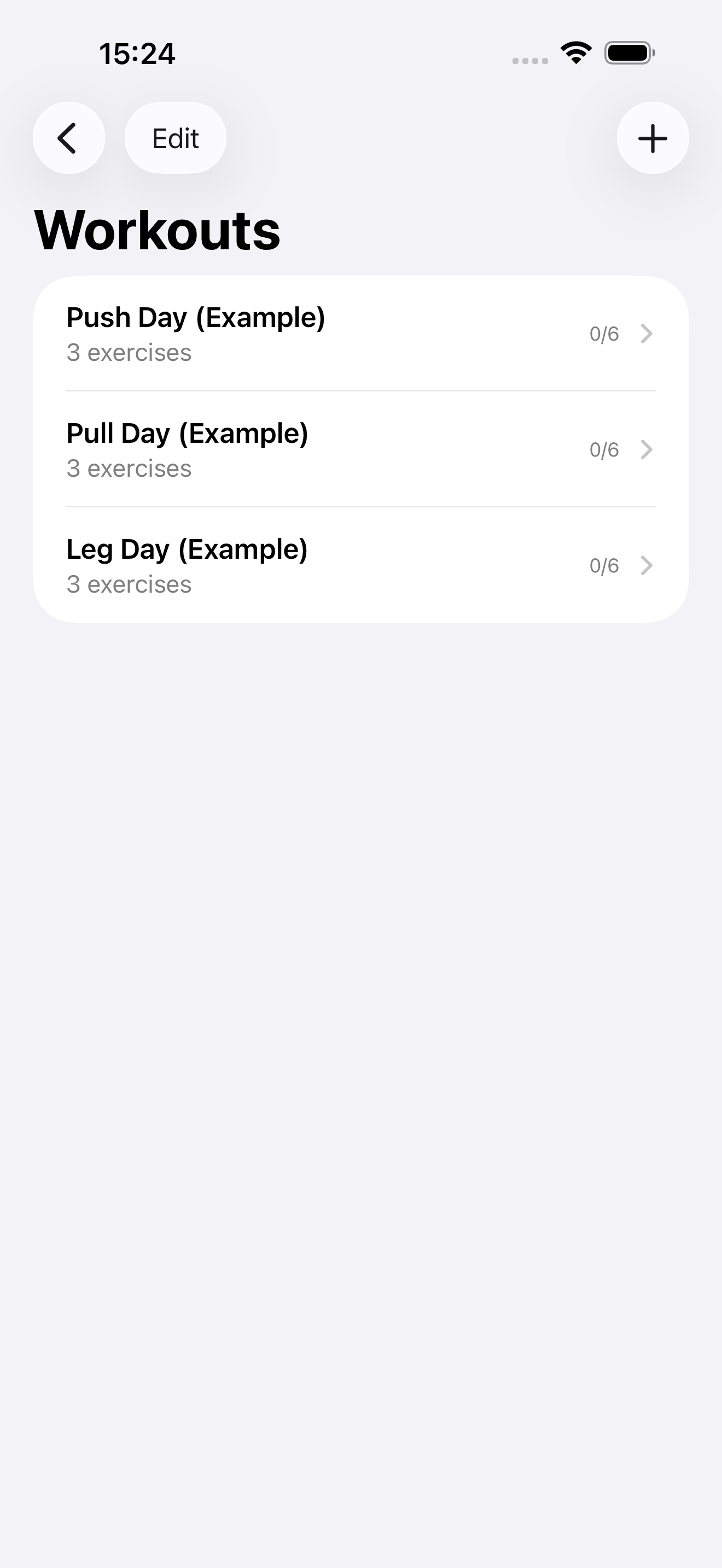
Tap Workouts to see your routines. WorkoutAssist ships with three example
routines — Push Day, Pull Day and Leg Day — each with example exercises so you can see how a
workout is structured. Edit or delete these, or tap the + button to build your
own from scratch.
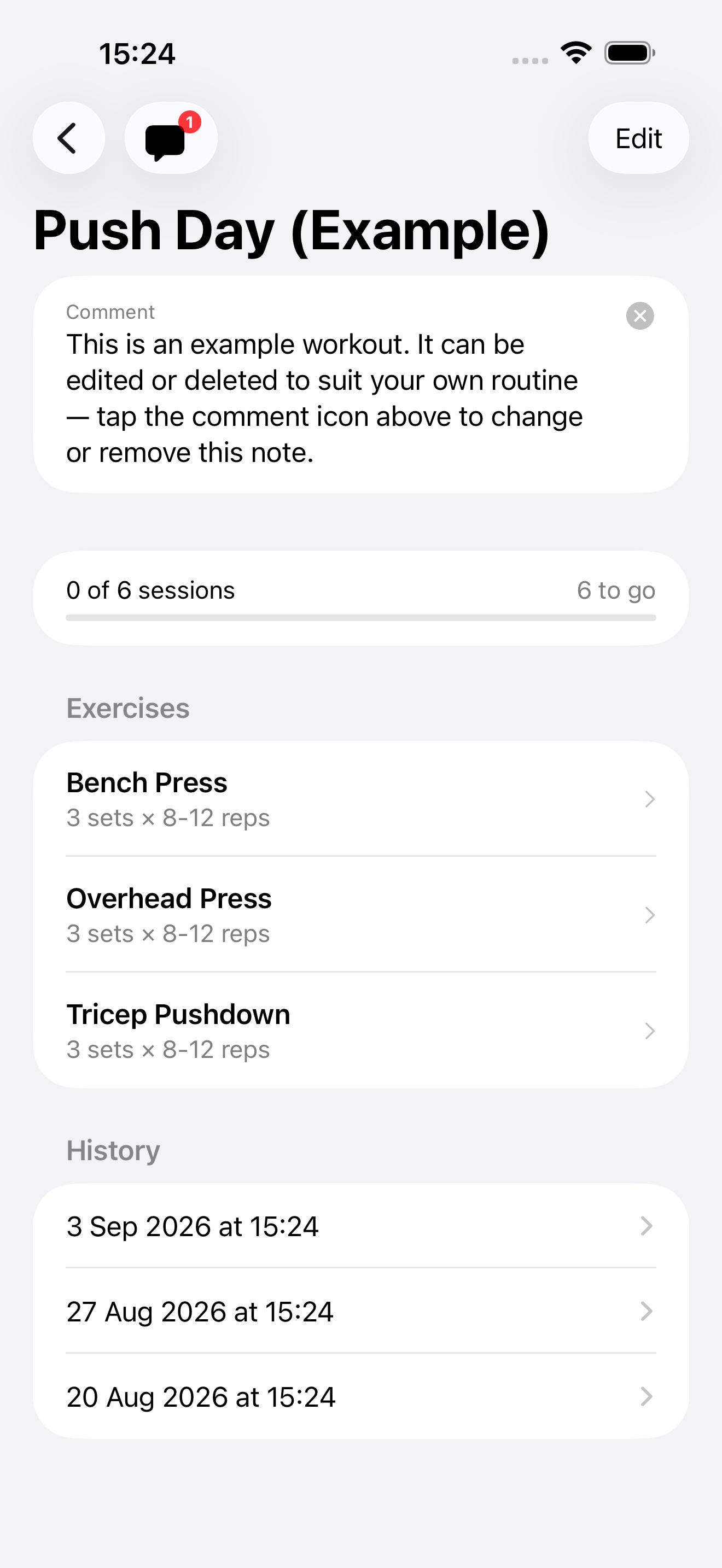
Open any workout to see its exercises, each shown with the target sets and rep range (e.g.
3 sets × 8–12 reps). A session progress bar tracks how many times you’ve completed
that workout, and a running History list shows every past session with its date.
Tap the comment icon to add your own notes to a workout.
3. Logging Sets
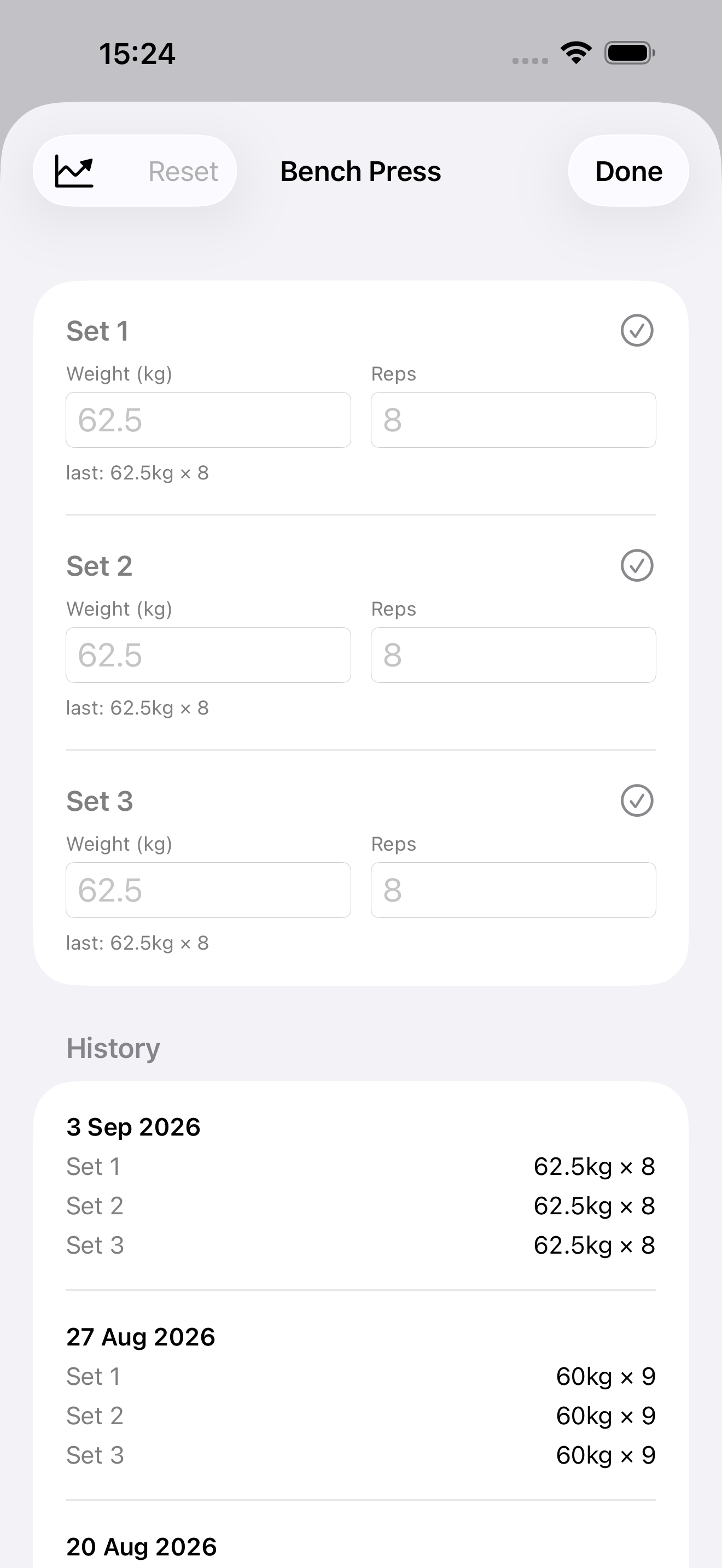
Tap into any exercise within a workout to log your sets. For each set, enter the
weight and reps you completed — the app shows your last
recorded values right underneath as a reference, so you always know what to aim to beat.
Tick the checkmark to mark a set as done.
A full history of previous sessions for that exercise is listed below, so you can scroll back
and see exactly how each set has progressed over time.
Enter weight and reps per set — your last result is shown for quick reference.
4. Tracking Exercise Progress
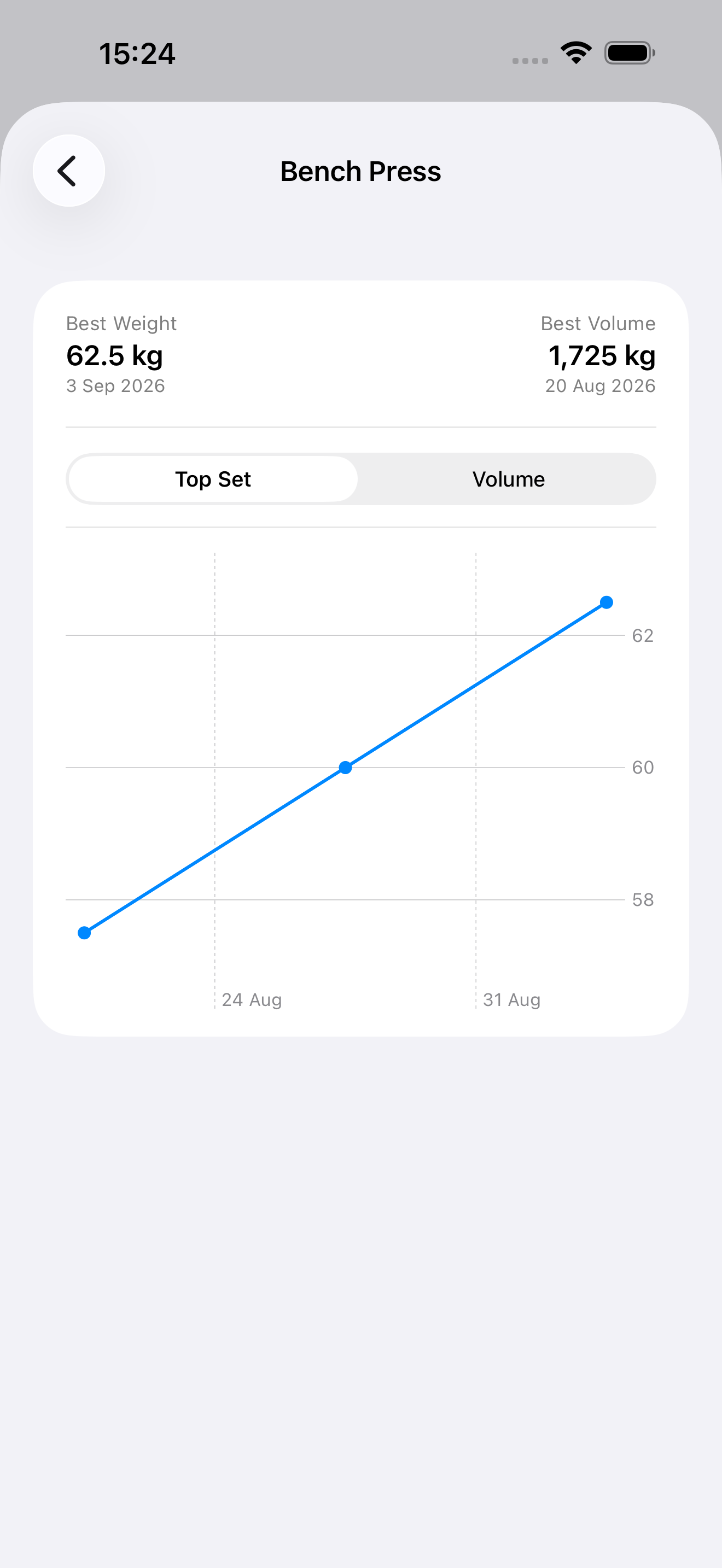
Tap the chart icon on any exercise to see your progress over time. You’ll see your
Best Weight and Best Volume (weight × reps × sets) at a
glance, along with the date each was achieved. Switch between the Top Set and
Volume tabs to view the matching trend line and watch your strength build
session after session.
Best weight, best volume, and a trend line for every exercise.
5. Exercise Library
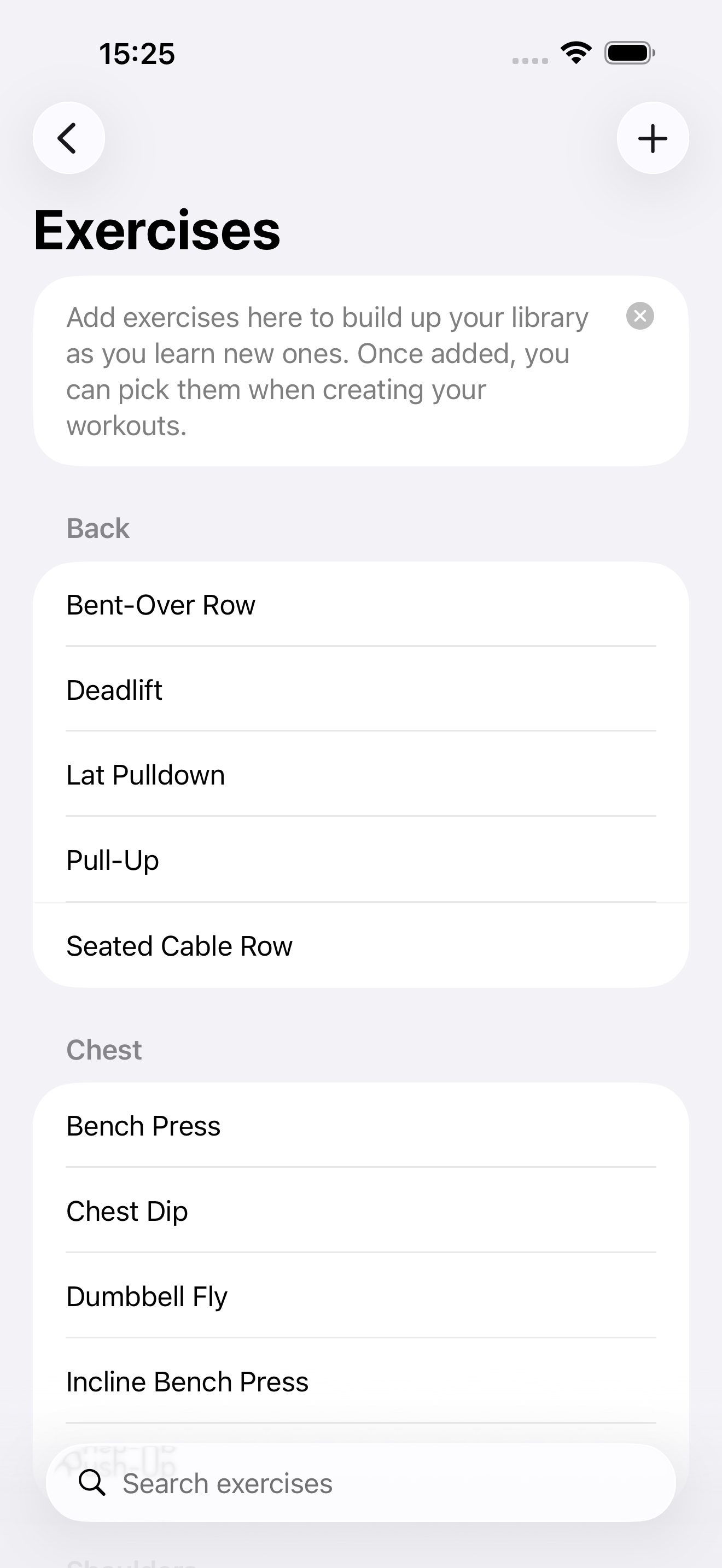
The Exercises tab holds your personal exercise library, organised by muscle
group (Back, Chest, Shoulders and more). Use the search bar to quickly find an exercise, or tap
+ to add new ones as you learn them. Once added, an exercise becomes available
to pick whenever you’re building or editing a workout.
Build up your own library, grouped and searchable by muscle group.
6. Logging Body Weight
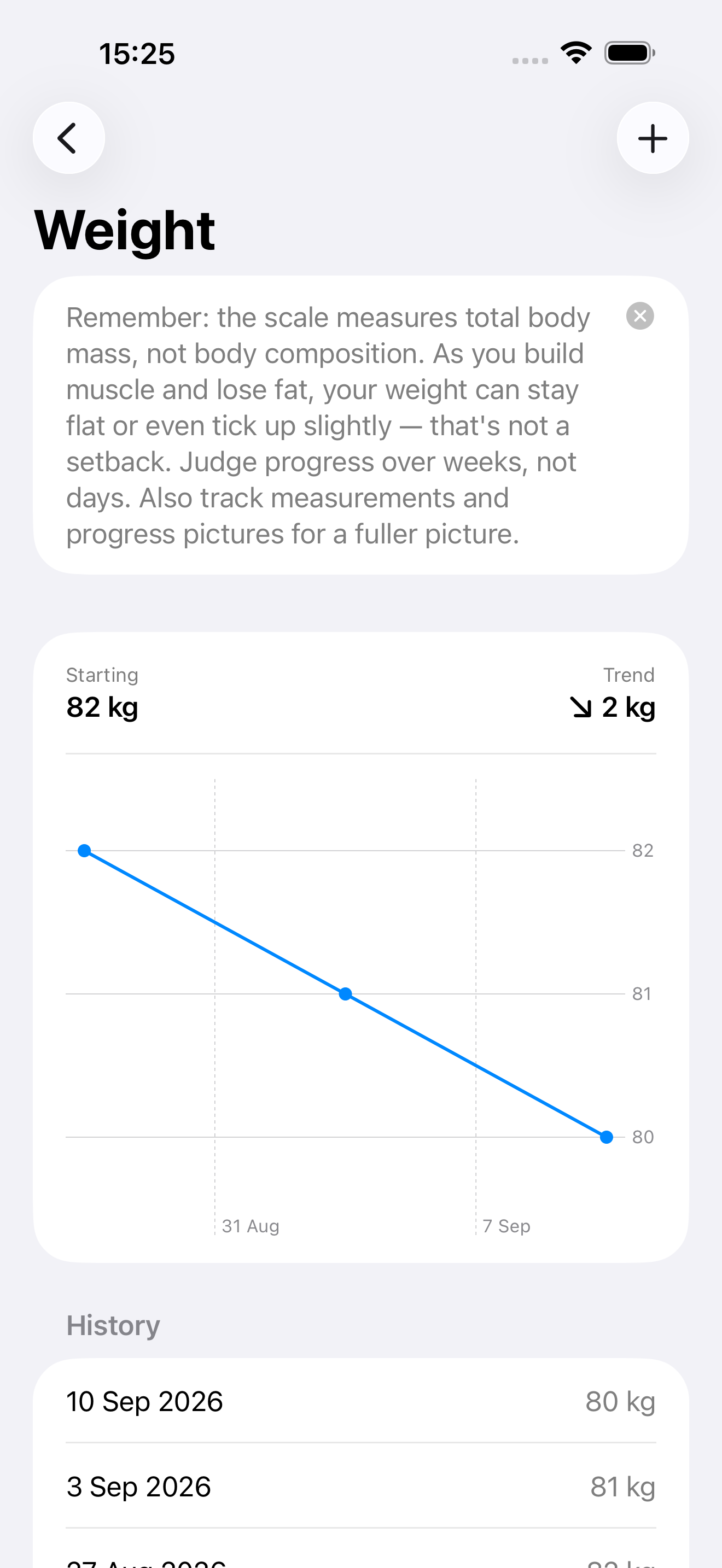
The Weight screen lets you log your body weight over time and see your
starting weight, current trend, and a chart of every entry. Remember: the scale measures total
body mass, not body composition — as you build muscle and lose fat your weight can stay flat or
even tick up slightly. Judge progress over weeks, not days, and pair this with measurements and
progress photos for the fuller picture.
Starting weight, trend, and full history at a glance.
7. Recording Measurements
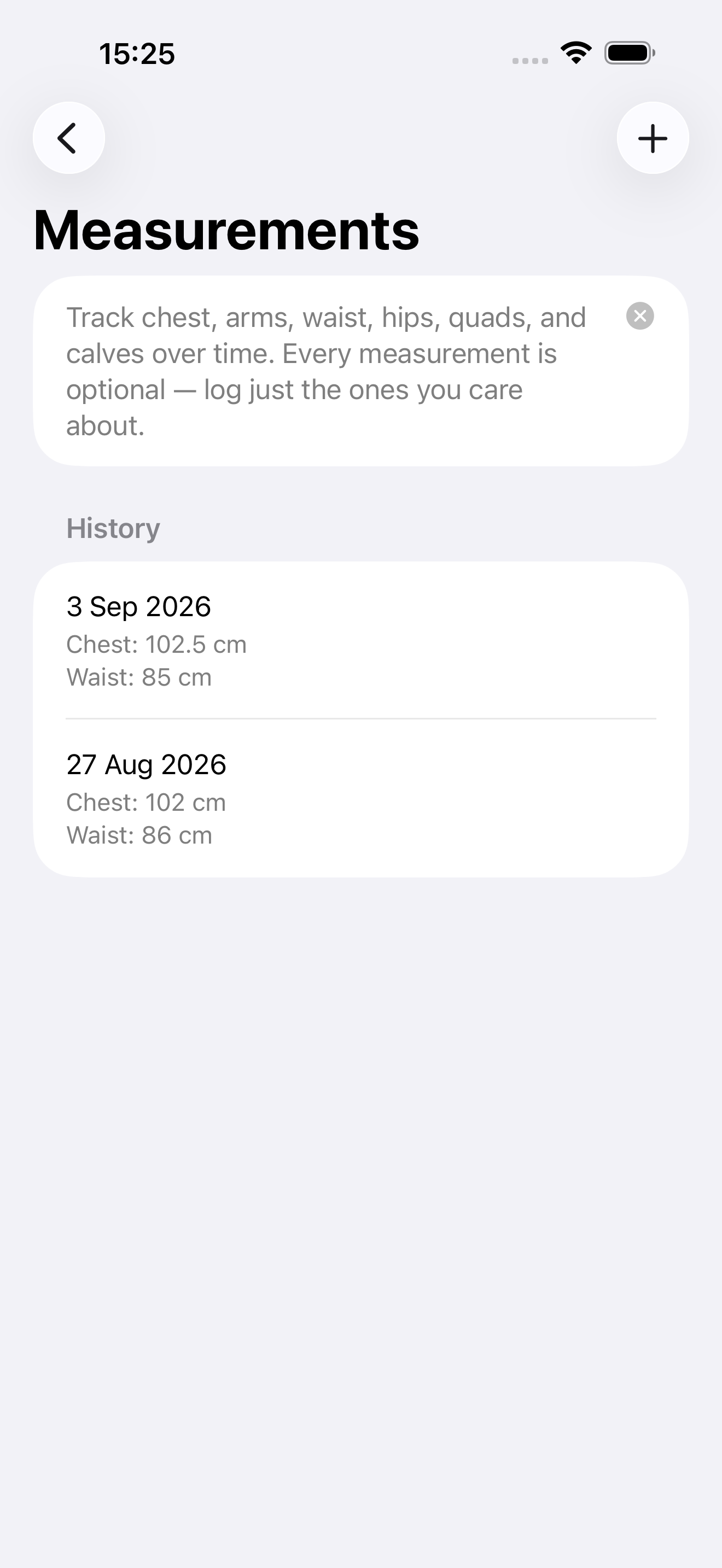
Tap Measurements to log your chest, arms, waist, hips, quads and calves.
Every field is optional — just record the measurements you personally care about — and each
entry is timestamped so you can track how your shape changes over weeks and months.
Log only what matters to you — every measurement is optional.
8. Progress Photos
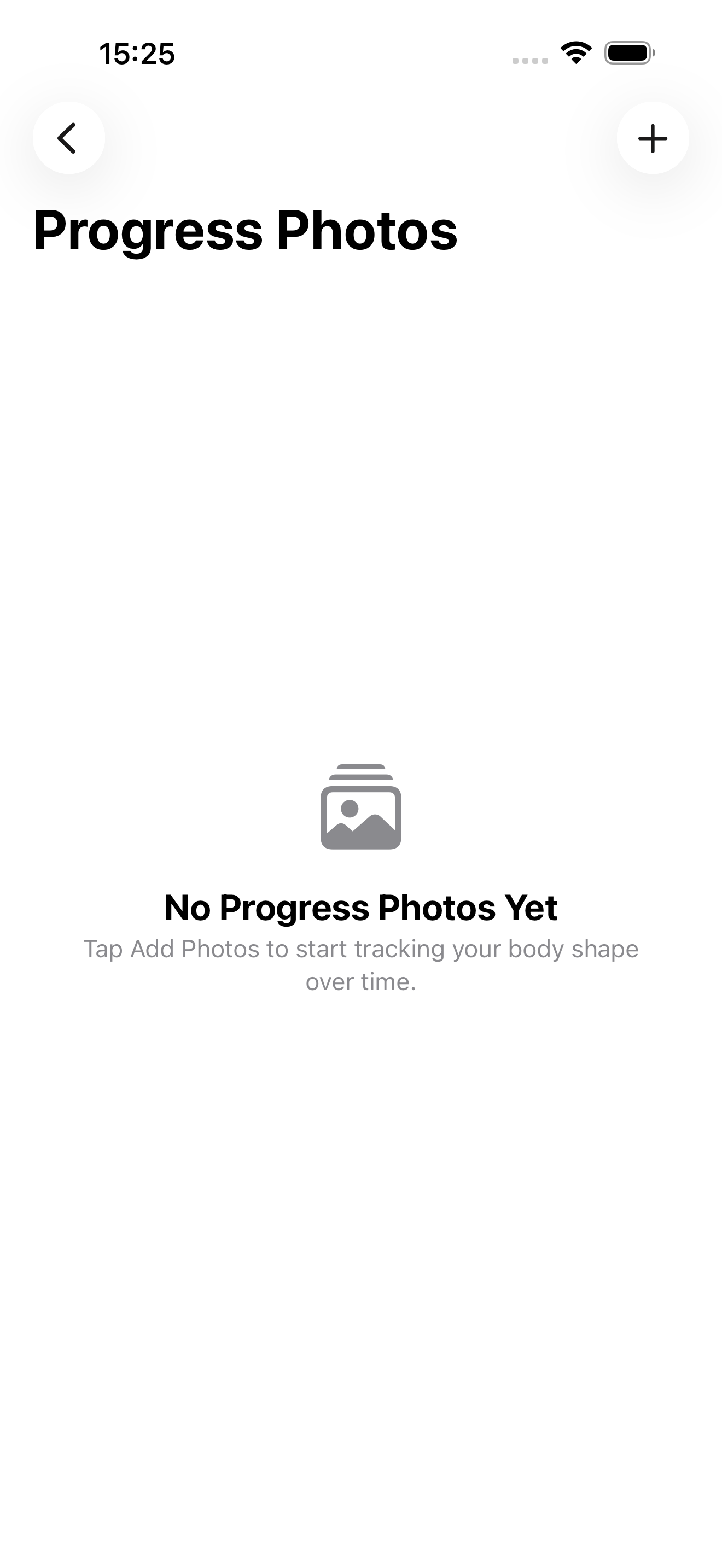
Use Progress Photos to build a visual timeline of your body shape changing
over time. Tap Add Photos to get started — combined with your weight and
measurement history, this gives you the clearest possible view of your progress.
Your visual progress timeline — add your first photo any time.
9. Customizing Settings
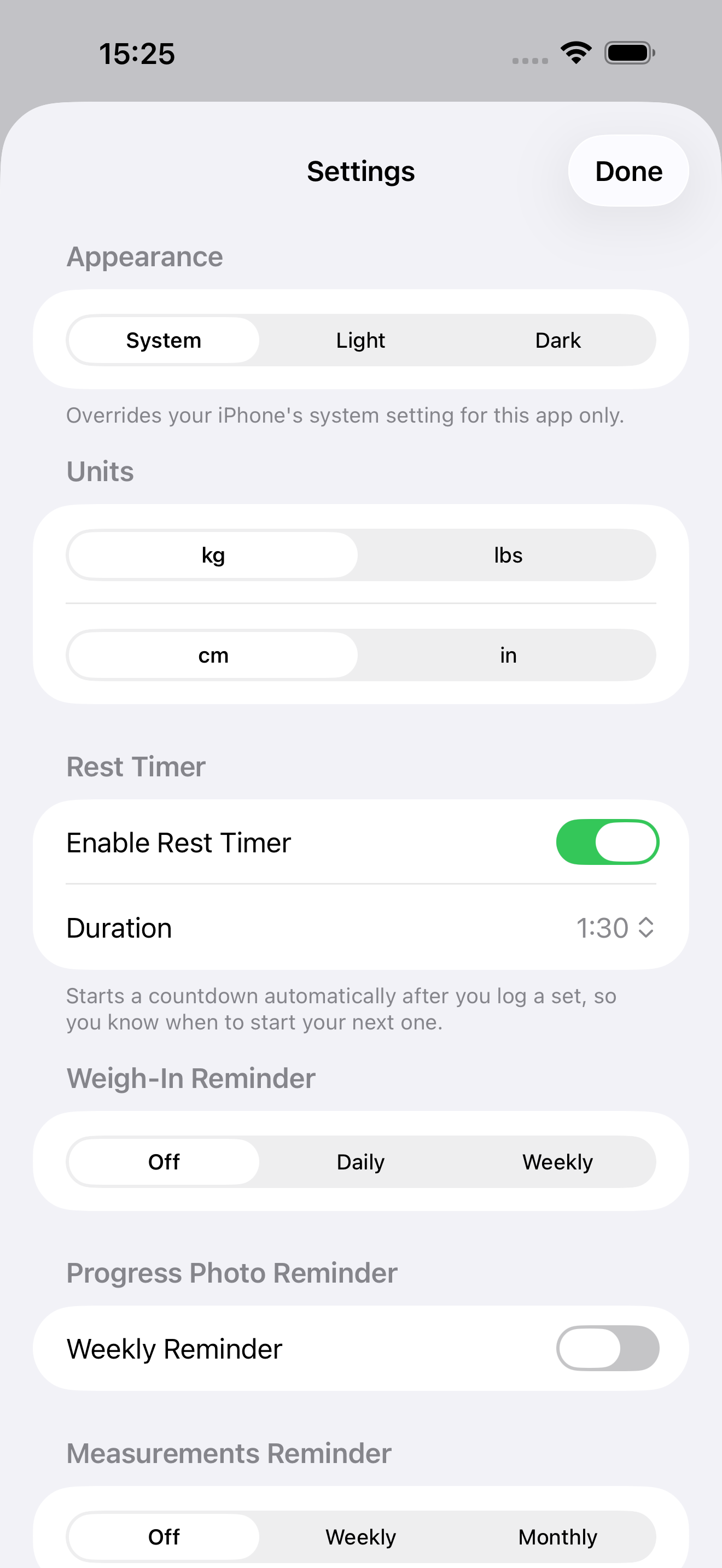
WorkoutAssist adapts to how you like to train. In Settings you can:
Choose System, Light or Dark appearance, overriding your phone’s setting for the app only.
Switch units between kg/lbs and cm/in.
Enable the Rest Timer and set its duration — it starts counting down automatically after you log a set.
Turn on Weigh-In Reminders (daily or weekly).
Turn on a Progress Photo Reminder (weekly).
Set a Measurements Reminder (weekly or monthly).
Appearance, units, rest timer and reminders — all in one place.
10. Tips for Getting the Most Out of WorkoutAssist
Log your sets as you go rather than after the workout — the “last” values shown for each set are far more useful in the moment.
Check the progress chart for an exercise before you train it, so you have a clear number to beat.
Judge weight trends over weeks, not single sessions, and lean on measurements and photos too.
Turn on reminders for weigh-ins, measurements and progress photos so consistent tracking becomes automatic.
Keep your exercise library tidy — only add exercises you’ll actually reuse, grouped by the muscle group you train.